
Parallel Port Lock
Fit the lower bracket and cover over the port, secure it with a USB Port Lock, and remove it with the key. Scroll down for each step.
User Guides / Parallel Port Lock
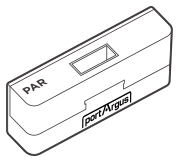
Parallel Port Lock
This is a physical cybersecurity device that prevents unauthorized access to a Parallel (DB-25) port.
| Environment | Parallel Port — DB-25 |
|---|---|
| Component | Bracket Cover 1EA, Lower Bracket 1EA, Phillips Head Screw 2EA |
| Dimensions | L × W × H: 56.2 × 12.1 × 17.6 mm (2.21 × 0.48 × 0.69 in) |
| Weight | 8.2 g (0.29 oz) |
Environment & Components
-
 Environment: Parallel Port
-
 Bracket Cover 1EA
-
 Lower Bracket 1EA
-
 Phillips Head Screw 2EA
-
 USB Port Lock (sold separately)
USB Port Lock is sold separately.
Installation
The illustrations show a DVI port; the steps are the same for the Parallel (DB-25) port.
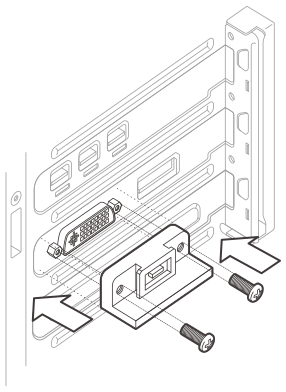
Attach the lower bracket
Place the Lower bracket over the port and attach it to the port by tightening the screws on the Bracket.
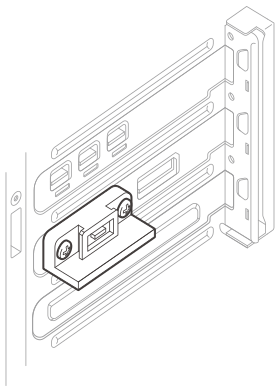
Check the screws
Ensure the screw of the bracket was successfully tightened.
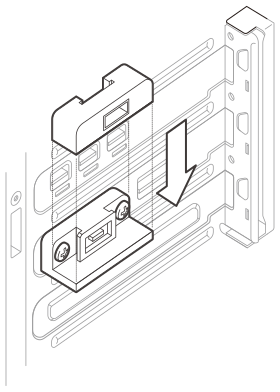
Place the bracket cover
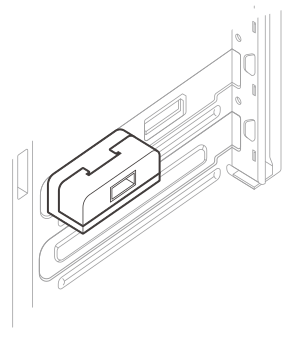
Place the Bracket cover onto the Lower bracket.
Secure with a USB Port Lock
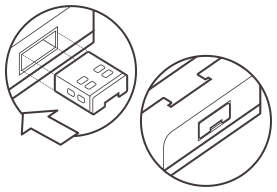
Insert a USB Port Lock to secure the Cover. The USB Port Lock must be installed in the correct direction and inserted completely.
Removal
Keys and locks are matched by color.

Insert the key
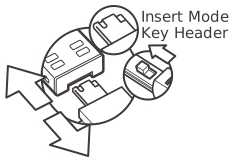
Insert the key into the key slot at the bottom of USB Port Lock with the button on the key facing upward.

Engage & pull out
Press the button of the key backward to engage the lock for removal and pull out the key.
Release the port lock
Press the button of the key forward to release the port lock from the key.
Remove the cover & bracket
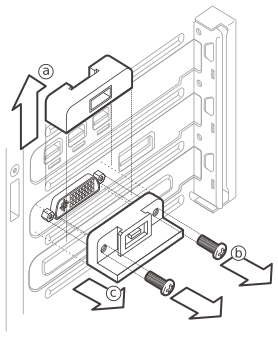
ⓐ Remove the cover, ⓑ unscrew, and ⓒ remove the bracket. (Reverse order of installation)